
Tools
Most SuSolid tools work on what you have selected, or on the whole model when nothing is selected, including groups and components nested inside.
After each repair, SuSolid shows the Analyse view again, so you can see straight away what is left. To leave a SuSolid view, choose another tool, for example Select (Space).
Inspect
 Analyse Show every problem in the model as coloured edges, with counters.
 Intersection Check Find and show where solids overlap (SketchUp Pro).
Repair
 Delete Single Edges Remove edges that have no face (red).
 Delete Coplanar Remove edges between faces that lie in one plane (blue).
 Delete Inside Remove internal and extra faces (yellow).
 Close Holes Fill openings with new faces (green).
 Repair Distorted Faces Flatten faces whose corners are not in one plane (brown).
 Flip Reversed Faces Turn the faces of solids outwards (cyan).
Organize
 Group Put loose geometry into groups (orange).
 Divide Split geometry into separate solids along internal faces (yellow).
Measure
 Assign Solid Material Give solids a material and density (iron, water, wood...).
 Assign Weight Type a known weight for groups and components.
 Balance Show the weight of each solid and the total.
Settings
- Settings Materials, hiding solids, Analyse filter, toolbar buttons, language.
Worked example: a table and four chairs
These screenshots follow one real model, the traditional dining table and chairs from 3D Warehouse, from the first Analyse to its weight. The counter in the top-left corner is SuSolid's; the circled button is the tool used in that step.
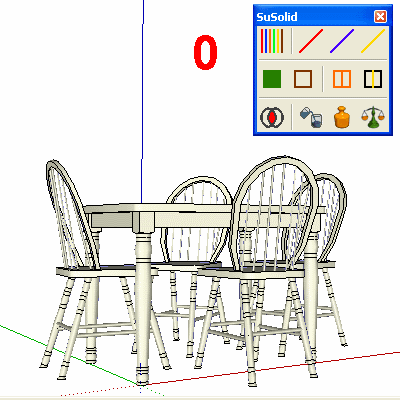
0. The model as downloaded. It looks fine, but nothing in it is a solid. 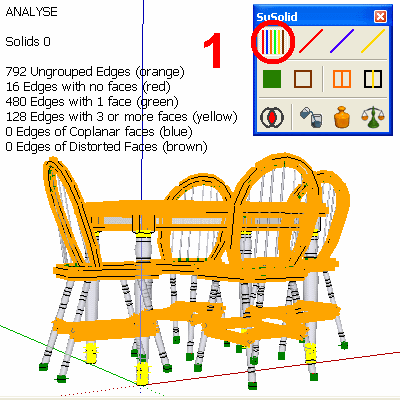
1. Analyse. 0 solids. 792 ungrouped edges (orange), 16 edges with no faces (red), 480 edges with 1 face (green), 128 edges with 3 or more faces (yellow). 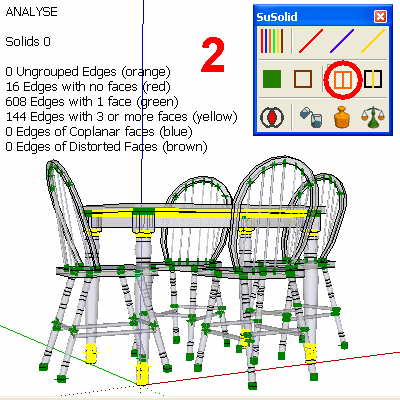
2. Group. Ungrouped edges: 0. Grouping reveals more holes and internal faces: now 608 green and 144 yellow. 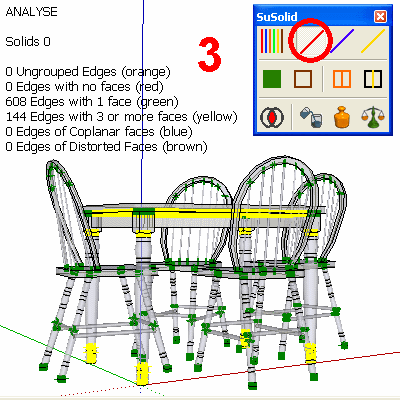
3. Delete Single Edges. Edges with no faces: 0. 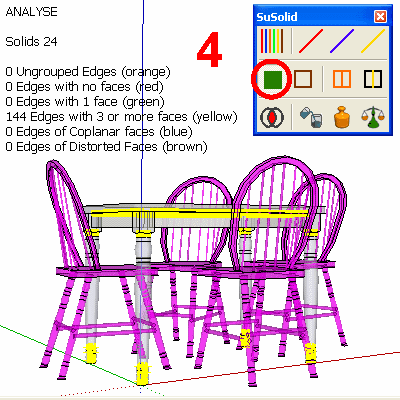
4. Close Holes. Edges with 1 face: 0. 24 parts are now solid (magenta). 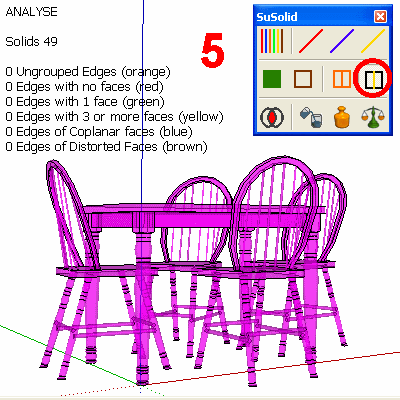
5. Delete Inside. All counters at 0: 49 solids. 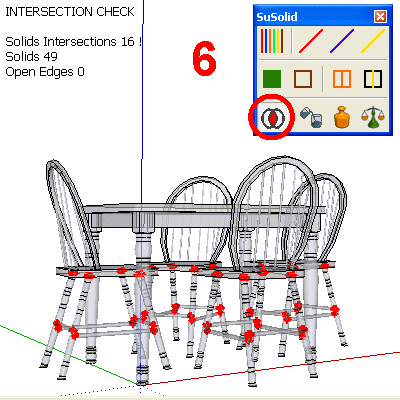
6. Intersection Check. 16 places where solids overlap, marked in red. 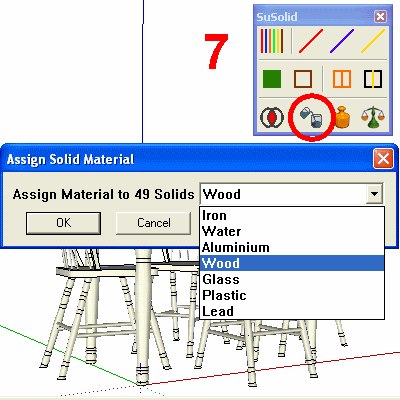
7. Assign Solid Material. Wood for all 49 solids. 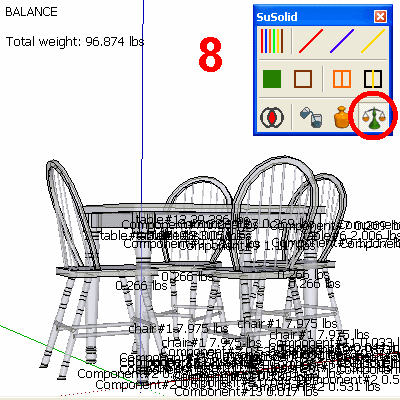
8. Balance. Total weight 96.874 lbs, with the weight of every part.
Screenshots from SuSolid 2 in an older SketchUp version.
In SuSolid 3.0, Fix All in the Analyse Report turns this model into solids in one click: it does steps 2 to 5 for you.